
Microsoft released its first Windows 11 security update for 2026, but it created two major problems. Some computers got stuck during shutdown and couldn’t complete the process. Other users lost the ability to sign in through Remote Desktop.
Microsoft responded by releasing emergency fixes for both issues. These updates arrived outside the normal update schedule and are available now through Windows Update.
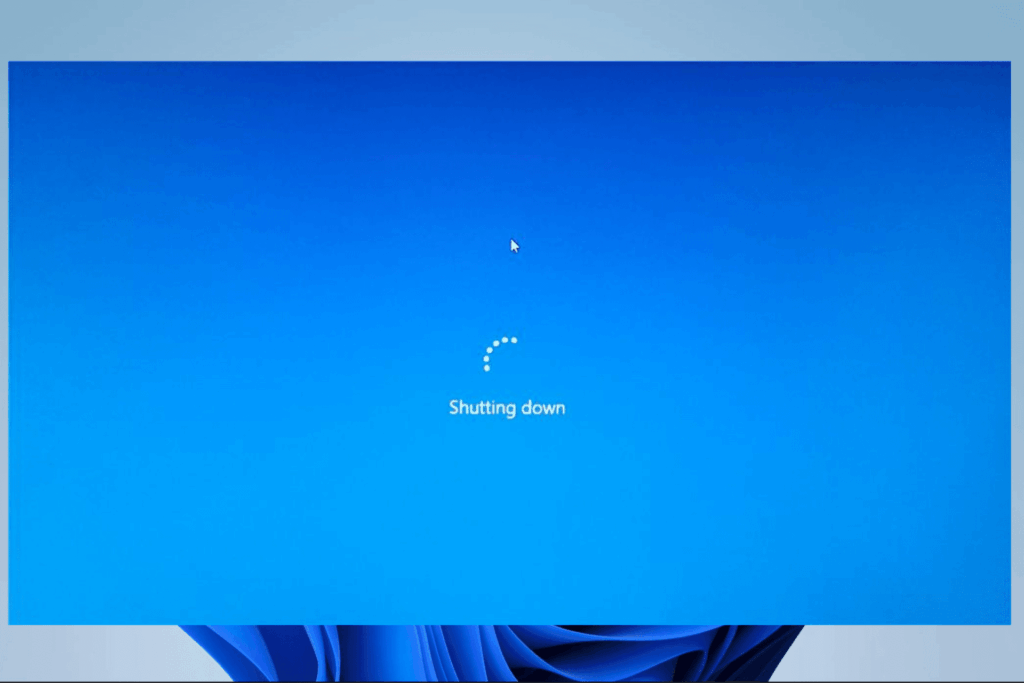
If your computer started freezing when you try to shut it down, won’t hibernate properly, or blocks remote sign-ins after you installed the latest security patch, you need to install this emergency fix. It’s the quickest way to get your system back to normal.
The emergency updates should appear automatically in your Windows Update settings. Check for updates and install them to resolve these problems.
The KB5077744 and KB5077797 emergency patches to install
Microsoft just pushed out two emergency updates called KB5077744 and KB5077797. You can get them now through Windows Update.
These fixes address two major issues that showed up after the recent security patch.
The first problem affected Windows 11 version 23H2 computers that have Secure Launch enabled. These machines would get stuck and couldn’t shut down or go into hibernation mode.
You may also like: Excel’s New IMPORTTEXT and IMPORTCSV Functions Simplify Data Import
The second problem was bigger and hit more systems. Remote connection apps stopped working properly across several Windows versions. This included Windows 11 version 25H2, Windows 10 version 22H2 ESU, and Windows Server 2025. Users couldn’t connect remotely, and authentication would fail when they tried to sign in.
Both updates are available now. Open Windows Update on your computer to download and install them if you experienced either of these problems.
KB5077744 and KB5077797 Update bugs
A computer that won’t shut down is a serious problem, not a minor bug. The Remote Desktop issue is just as bad. Many people depend on remote access daily for their jobs, to fix computer problems, and to switch between different machines. When you can’t sign in remotely, your entire workday can grind to a halt.
The timing makes this situation worse. This was the first Windows 11 update of 2026, and it shipped with serious bugs that should have been spotted before release.
You may also like: Windows 11 26H1 Build 28000: Everything New in Microsoft’s Arm-Focused Update
Microsoft runs the Windows Insider Program specifically to find and fix problems like these before updates go public. But somehow, issues this severe still slipped through testing and reached regular users.
This raises questions about the testing process. If beta testers didn’t catch problems that affect basic functions like shutting down your computer or signing in remotely, something went wrong in the quality control pipeline.
KB5077744 and KB5077797 Update fixes
If these problems affected your computer, open Windows Update right away and install the emergency patches as they become available. After you install them, your computer should shut down normally again, and Remote Desktop sign-ins should start working.
You may also like: Windows 11 Bug Locks Samsung Users Out of System Drive
If you didn’t experience these issues, you don’t need to worry. But this situation offers a useful lesson about timing. Waiting a day or two before installing new updates can help you dodge serious problems like these. This approach matters even more when the updates affect basic features, such as shutting down your computer or connecting remotely.
Here’s what you should do. Install the emergency update if needed. Test that your computer shuts down properly. Then you can get back to your normal routine.
This shows why some caution with immediate updates makes sense, especially at the start of a new year when Microsoft begins fresh update cycles.