
Your location data gives away more than most people realize. It’s not just about where you are at a given moment. Over time, that data builds a detailed picture of your daily patterns, the places you visit regularly, and when your home is likely sitting empty.
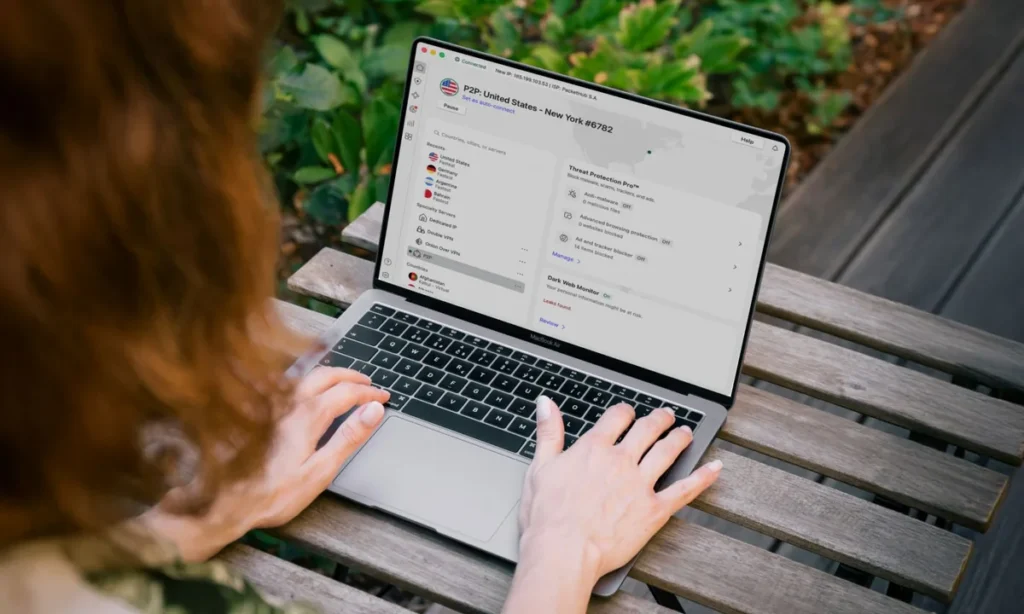
NordVPN built a free browser-based tool called My Location to make that visible in real time. Open it, and it immediately shows you two things: your actual physical location and the virtual location that every website you visit can see. It takes seconds, and the results tend to be eye-opening.
NordVPN My Location tool: Shows the difference between your real and virtual location
Your real location gets determined through device-level methods like GPS or your browser’s geolocation API. That’s what apps are asking for when they request permission to access your location.
Your virtual location works differently. It comes from your IP address, the identifier attached to your internet connection. Websites read this automatically, without asking for any permission, and use it to estimate where your traffic is originating from. You don’t have to agree to anything for that to happen.
You may also like: Windows 11 Bug Locks Samsung Users Out of System Drive
The gap between those two data points can be significant, and understanding it has real consequences. Websites use location data to serve targeted ads and adjust pricing based on where you’re connecting from.
The same product can show a different price depending on your region, and most people never notice. In more serious cases, a detailed location history with timestamps creates conditions that can enable surveillance or stalking.
NordVPN’s CTO Marijus Briedis put it directly, noting that once location data gets exposed or shared too broadly, it can end up being used for profiling and targeting well beyond whatever the original purpose was when it was first collected.
How to use NordVPN’s My Location tool?
To try the tool, go to the My Location page and click “Test Location Access.” Your browser will prompt you to share your location with NordVPN. Select “Allow this time” to give it one-time access through your browser’s geolocation API. From there, the tool maps out both your physical location and your IP-based virtual location side by side so you can see exactly what gets exposed.
On the privacy side, NordVPN confirms it does not log or store any location data that the tool picks up, so using it doesn’t create a new exposure risk.
You may also like: New Windows 11 Update Comes With Taskbar Network Speed Test, Emoji 16.0, and Built-in Sysmon
Beyond the tool, Briedis recommends a few practical habits worth adopting. Review your app permissions on a regular basis and set location access to only activate while you’re actively using an app rather than allowing it at all times.
Turning off geotagging in your camera settings is another simple step that stops your photos from embedding location data automatically.
A VPN won’t block GPS-based tracking, but it does mask your virtual location by replacing the IP address that websites see.