
Microsoft just released a new Windows 11 Release Preview build. It shows what’s coming in the next feature drop, which should roll out within the next few weeks. This update focuses on small improvements that make daily use easier. The main additions are Taskbar updates and new emojis.
Windows 11 gets new features every month now. Microsoft calls this “Continuous Innovation,” which means features are released when they’re ready rather than waiting for one big annual update.
The old update held everything back until a major version is released. This new approach gets useful changes into your hands faster.
The next update includes Emoji 16.0. You’ll see new options like a fingerprint, harp, and shovel emoji added to the collection. These show up in the Emoji panel, which you can open by pressing Win+. on your keyboard.
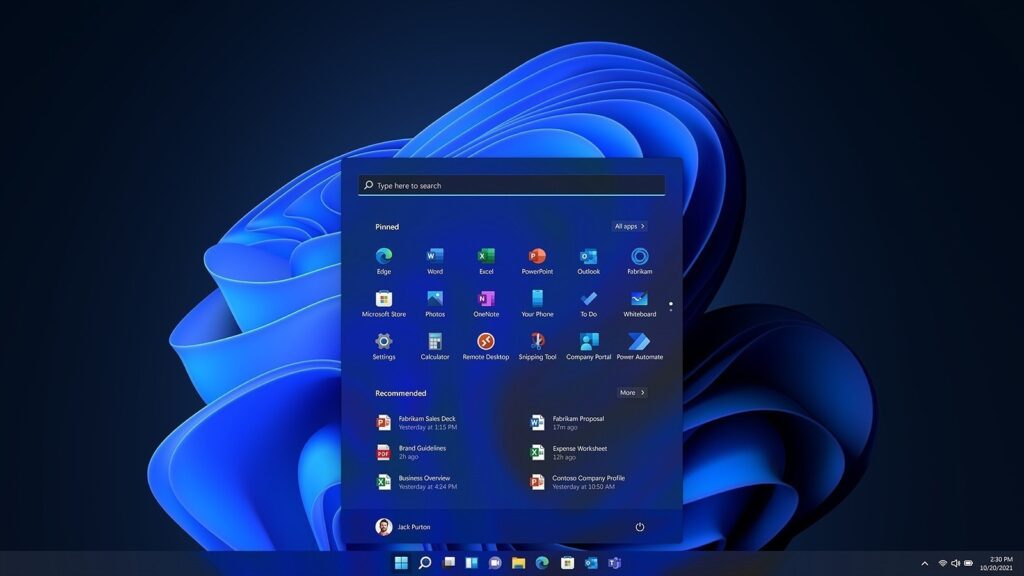
The Taskbar is also getting some useful additions. Microsoft is adding a network speed test shortcut directly to the Taskbar. You can access it by right-clicking the network icon in the system tray. The update also includes built-in Sysmon support, but it’s turned off by default.
Here’s what Microsoft is testing in today’s Release Preview build. These features should start appearing on regular PCs within the next few weeks:
Emoji
Emoji 16.0 adds a small set of new emojis to Windows 11, with one new option from each major category. You’ll find them in the emoji panel when you open it.
Backup and Restore
Windows Backup for Organizations now includes a first sign-in restore feature. This works on Microsoft Entra hybrid joined devices, Cloud PCs, and multi-user setups.
You may also like: Microsoft Releases Emergency Windows 11 Updates to Fix Shutdown and Remote Desktop Issues
When you sign in for the first time, your settings and Microsoft Store apps restore automatically. This makes device refreshes, upgrades, and migrations smoother because you don’t have to manually set everything up again.
Quick Machine Recovery
Quick Machine Recovery now turns on automatically for Windows Professional devices that aren’t connected to a domain or managed by enterprise tools.
These devices get the same recovery features that Windows Home users already have. If your device is domain-joined or managed by your organization, Quick Machine Recovery stays off unless your IT department enables it.
Taskbar And System Tray
You can now run a network speed test directly from the taskbar. Access it through the Wi-Fi or Cellular Quick Settings, or right-click the network icon in the system tray.
The test opens in your default browser and works with Ethernet, Wi-Fi, and Cellular connections. This gives you a quick way to check network performance or diagnose connection problems without hunting down a separate tool.
You may also like: Microsoft Copilot for Windows Gets a Major Update: Here’s What’s New
The taskbar also handles multiple windows better now. If you use the uncombined taskbar setting and have many windows open for one app, only the windows that don’t fit will move to the overflow area.
Before this change, all windows from that app would move together, leaving the overflow area looking mostly empty while your main taskbar stayed crowded. The new behavior makes better use of available space.
Accounts
The Start menu now includes a direct link to your Microsoft account benefits page in the account menu. This takes you to account.microsoft.com, where you can see and manage what comes with your Microsoft account. It’s a faster way to access these features without navigating through multiple menus.
Identity And Access Management
Windows now supports Microsoft Entra ID group and role SID resolution. This means Windows can translate Entra cloud group and role security identifiers into readable names.
You may also like: NordVPN My Location tool: How to See What Your Location Data Exposes Online
You can now use Entra-only groups in file permissions, local group membership, and access control settings. They display correctly without needing on-premises or hybrid Active Directory identities in the background.
Camera Settings
If your camera supports pan and tilt, you can now control these functions directly in the Settings app.
Go to Settings > Bluetooth & devices > Cameras, then look under “Basic settings” for your selected camera. The controls will appear there if your hardware supports them.
You may also like: Windows 11 26H1 Build 28000: Everything New in Microsoft’s Arm-Focused Update
Built-in Sysmon
Windows now includes Sysmon functionality built directly into the operating system. Sysmon captures system events that help you spot potential security threats. You can create custom configuration files to filter which events you want to track, so you’re not sorting through unnecessary data.
The captured events get written to the Windows event log. This means your security applications can read them, and you can use the data across different monitoring and analysis tools. Before this update, you had to install Sysmon separately, but it’s already there now if you need it.
You may also like: Windows 11 Bug Locks Samsung Users Out of System Drive
Built-in Sysmon is disabled by default and must be explicitly enabled. Here is how to enable it:
- Go to Settings > System > Optional features > More Windows features > checking Sysmon or in PowerShell or command prompt: Dism /Online /Enable-Feature /FeatureName:Sysmon
- To complete the installation, from PowerShell or command prompt run:sysmon -i
- Note: If you’ve already installed Sysmon from the website, it must be uninstalled before enabling the built-in Sysmon.
Widgets
Widget Settings now opens as a full page inside the Widgets app. Previously, it opened in a separate dialog box. The full page view gives you more room to see and adjust your settings.
Desktop Background
You can now use .webp image files as your desktop background. Set them through Settings > Personalization > Background, or right-click the image in File Explorer and choose it from there. This format wasn’t supported before, so if you saved images as .webp files, you had to convert them first.
Search
The search process in Task Manager now shows a magnifying glass icon instead of the old one. It’s a small visual update that makes the search function easier to spot.
Storage Settings
Some of the dialogs in Storage Settings have been redesigned to look cleaner and more consistent with the rest of Windows 11. The scanning process for temporary files runs faster now. If you regularly check what’s taking up space on your drive, you’ll notice the difference when the scan completes more quickly than before.
Windows Update Settings
The Windows Update Settings page loads and responds faster now. If you check for updates regularly, you’ll notice the interface feels snappier when you open it or make changes.
Login and Lock Screens
The login screen works more reliably. Fewer instances where it hangs or doesn’t respond when you try to sign in.
Nearby Sharing
Sending large files through Nearby Sharing is more stable now. Before this update, transfers would sometimes fail or stall when moving bigger files between devices.
You may also like: Excel’s New IMPORTTEXT and IMPORTCSV Functions Simplify Data Import
Projecting
The projection menu now appears more consistently when you press Windows key + P. Previously, it would sometimes fail to show up, forcing you to try the shortcut multiple times.
Printing
The Windows print service runs better during high-volume printing jobs. This prevents slowdowns and keeps the print queue moving when you send multiple documents to print at once. If you print frequently or in batches, you’ll see fewer delays.
File Explorer
The command bar now includes an “extract all” option when you’re browsing non-ZIP archive folders. Before this, you had to right-click to extract files from formats like RAR or 7Z. Now the option sits right in the command bar for faster access.
A bug has been fixed where holding Shift and clicking File Explorer in the taskbar, or middle-clicking it, would sometimes reopen your current File Explorer window instead of launching a new one. This was frustrating if you needed multiple windows open at the same time. It now opens a new instance as expected.
The Network page in File Explorer also displays devices more reliably now. You’re less likely to see missing devices or have the page fail to load when you’re trying to browse shared folders or networked drives.
Display
Windows 11 now resumes from sleep faster on systems under heavy load. Microsoft made performance improvements that cut down the time it takes to wake your PC, especially when you have multiple programs running or system resources are stretched.
If you use a laptop with a docking station while the lid is closed, waking from sleep when you plug in AC power works more reliably now. Before this fix, you often had to open the laptop lid to get it to respond. That step is no longer necessary in most cases.
Other Changes in the new updates
Microsoft fixed several small visual bugs. These include issues with the taskbar when set to autohide, problems with Windows Security credential fields, and glitches in the print dialog. None of these were major breakages, but they made certain tasks feel clunky.
These features are available now for Windows Insiders in the Release Preview Channel. Everyone running Windows 11 should see them within the next few weeks. They’ll arrive with the February security update, which Microsoft plans to release before the end of the month.